

Lately, I’ve notice more and more typos creeping into my blog posts. It’s not a fun thing to admit, but it’s because I’ve become complacent about editing.
Oh I could blame it on being busy, or life getting crazy, but the truth is…I’ve gotten sloppy.
It’s easy to do. We’re half-way through the year, things are going well with my blog, and my concentration has been elsewhere. Still no excuse.
[tweet_box design=”default” float=”none” inject=”#writing #blogging”]My Blog Editing Checklist – @EdieMelson on @BRMCWC[/tweet_box]
So today I’m going back to the basics. I’m posting the checklist I use before I hit the publish/schedule button for a blog. It’s not a long involved process, but it will ensure those annoying typos become much less commonplace.
Before I get to the list you should know I compose my blog posts in a word document, with very little formatting. I use Times, 12-point font. I use block formatting, everything justified left and an extra blank line between paragraphs. I have my Microsoft word set up with no default extra blank spaces inserted after a hard return. Here’s why I go to this trouble:
Blog Editing Check List
 NOTE: Especially with blogs that are on Blogger, sometimes, weird formatting accidently gets copied over to my post and I can’t seem to get rid of it. This could be extra spaces between lines, weird formatting for bullet points, or even odd indentions. If I can’t make the text behave, I have a fool-proof way to tame the text. I highlight the offending paragraph and click on the REMOVE FORMATTING icon at the top of the page. It’s easy to find, it’s a capital T with a red x at the base. There is a remove formatting option on all major blogging platforms, although the way you get to is is different. Once I click that button, I can add back in the formatting I want.
To find this option in WordPress, click on the FORMAT tab and choose the icon that looks like an eraser and says remove formatting.
NOTE: Images aren’t searchable in a search engine, so be sure to save the jpeg file with a searchable title (like the title of your blog post).
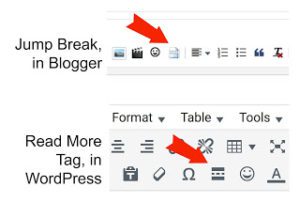 I insert a jump break. This is something I find helpful for a Blogger site.On WordPress, it’s done by inserting a Read More Tag. I want to make sure the home page of my blog is easily scannable.
These steps won’t insure a perfect post every time, but they will cut way back on incidental typos.
Now I’d like to know what you do to insure a clean blog before you hit publish. Any tips you share about your process can help us all get better.
 Edie Melson is a woman of faith with ink-stained fingers observing life through the lens of her camera. No matter whether she’s talking to writers, entrepreneurs, or readers, her first advice is always “Find your voice, live your story.” As an author, blogger, and speaker she’s encouraged and challenged audiences across the country and around the world. Her numerous books reflect her passion to help others develop the strength of their God-given gifts and apply them to their lives. Don’t miss her latest book, Soul Care for Writers. You can also connect with her on her website, through Facebook, Twitter and Instagram.

The Conversation
Edie, thank you for these specific, helpful steps. Once I publish my post, I read it once more to see if there are errors I missed that I can still correct. Sometimes I have a friend proof my draft. Again, thank you.
Edie, This is the best tool. Thank you. Have a great Independence Day.
My question is how do you get Microsoft word set up with no default extra blank spaces inserted after a hard return? I’ve been through the preferences, but can’t seem to find that option. That’s one thing that really frustrates me.
Ane, here’s a blog post that explains it. After you set everything the way you want, be sure you click default so it stays that way. https://thewriteconversation.blogspot.com/2013/06/business-basics-for-todays-writerhow-to.html
Hi there, this was a useful read. I never heard of a jump break before so I learnt something new.
In my WordPress blog, I always save the post and then hit preview to view what the actual layout will look like on my page. Things shift sometimes, and double spaces are easier to spot. I can also tell when photos need to be resized (photo placement is one thing I really miss from Blogger—I find it hard to get photos exactly where I want them in WordPress because you can’t simply drag them). I also reread the whole post at this point for final word changes or typos.